
Meshy is an AI tool that generates 3D models from text or images. This article walks through Meshy's features, pricing, licensing, and where it does and doesn't fit, based on what we found on Meshy's official website (including the pricing page), Help Center, Terms of Use, and API documentation on October 4, 2026 (UTC).
What is Meshy?
Meshy is an AI 3D generation service provided by Meshy LLC in the United States. Its official website describes it as a tool that turns text or images into 3D models in under a minute. Besides the browser-based web app, it offers an API, plugins for tools such as Blender and Unity, and a mobile app (Meshy official website).
The AI models Meshy uses for generation come in several generations. The Help Center's model comparison article says in its title that it compares Meshy 7.1, Meshy 6, and Meshy 6 Lite, but its body text and table, the credit cost page, and the official website all say "Meshy 7." The API documentation marks "meshy-7" as deprecated and directs users to "meshy-7.1" instead (Text to 3D API). Because it isn't stated whether these are just different names or different versions, this article follows the Help Center and writes "Meshy 7." According to the same article, Meshy 7 is not offered for Text to 3D, and users who want to use Meshy 7 from text are directed to 3D Agent (Meshy model comparison). The API documentation, however, says "meshy-7.1" can also be specified in the Text to 3D API.
Main features
These are the main features we confirmed on the official website and in the Help Center (feature list, interface tour, AI Auto Rigging, official website):
- Text to 3D: generates a 3D model from a text description
- Image to 3D: generates a 3D model from an image such as a photo, sketch, or concept art (with Meshy 7, it also supports Multi-view, which uses images from several angles; according to the plan comparison article, this is not available on the free plan)
- AI texturing: generates textures for uploaded or generated 3D models from text or image prompts, including PBR maps (albedo, normal, metallic, roughness)
- Remesh and UV unwrapping: reduces polygon count, cleans up topology, and generates UV maps automatically
- Auto-rigging and animation: automatically sets up a skeleton and skin weights for humanoid or quadruped characters. The official website says there are more than 600 motion presets, but according to the plan comparison article, 20 are available on the free plan
- 3D printing features: printability checks and repair, automatic splitting into parts, and multicolor printing
According to the Help Center, export formats include FBX, OBJ, USDZ, GLB, STL, BLEND, and 3MF. Supported upload formats are FBX, OBJ, STL, glTF, and GLB, up to 100 MB per file (supported file formats).
Pricing and how credits work
Credits are the billing unit
Meshy consumes credits for each task, such as generating a model or a texture. According to the Help Center, the main costs in the web app are as follows, and they are the same on every plan (credit cost per task):
- Model generation in Image to 3D / Text to 3D: 25 credits with Meshy 7 (Meshy 7 is Image to 3D only), 20 with Meshy 6, and 10 with Meshy 6 Lite
- Texture generation: 10 credits for 2K/4K, 15 for 8K
- Printability repair and automatic splitting: 10 credits each
- Smart-Rig (rigging): 0 credits. Text to motion is 3 credits
Texture generation is a separate step from model generation and consumes its own credits (how to use Text to 3D). The credit cost page notes that the listed values are for reference and that the current costs should be checked in the web app. It also says credits are returned if a task fails.
Individual plan pricing
Here is what the official pricing page showed as of October 4, 2026 (UTC) (pricing page). The page first displayed prices in Japanese yen, so we switched the currency to US dollars. We did not check the yen amounts.
- Free: $0, 100 credits per month, 1 task processed at a time, low priority
- Pro: regular monthly-billing price of $20 per month, 1,000 credits per month
- Premium: regular monthly-billing price of $40 per month, 3,000 credits per month
- Ultra: regular monthly-billing price of $100 per month, 8,000 credits per month
The Help Center's plan comparison article lists the number of tasks that can wait in the queue as 1 for Free, 10 for Pro, 30 for Premium, and 100 for Ultra (plan comparison).
The pricing page also showed discounts for new users. Monthly billing showed "50% off the first month," with a first-month price of $10 for Pro, $20 for Premium, and $50 for Ultra. Yearly billing showed "20% off for new users," with first-year payments of $192 for Pro (equivalent to $16 per month), $384 for Premium (equivalent to $32 per month), and $960 for Ultra (equivalent to $80 per month). All of these are discounted prices for new users, not regular prices. The details and eligibility of these discounts may change, and we could not confirm the amount charged when an individual yearly plan renews.
Team plans
For teams, Studio was shown at a regular monthly-billing price of $70 per month for the default 1-seat configuration, including 5,500 credits per month shared across the team. The seat field also shows a price of $10 per seat per month, but the total for 1 seat is shown as $70, and the $10 is not added on top of that. The first month for new users is $35. With yearly billing, the first year was shown as $672 (equivalent to $56 per month), and renewals from the second year on were explicitly stated as $840 per year. Enterprise, for larger-scale use, is quoted individually.
The Terms of Use state that fees are in US dollars and exclude taxes (Terms of Use). We did not check the final tax-inclusive amount or regional differences, so check them at checkout before you subscribe.
Credit rollover and additional purchases
The monthly credits included in a plan reset every month and do not roll over to the next month (Terms of Use, Section 2.10). For additionally purchased credits, the FAQ on the pricing page says that permanent credits, such as purchased ones, do not expire. Section 2.10 of the Terms of Use, on the other hand, says additional credits can be used for up to one year from the date of purchase, after which any unused credits automatically expire. Because these explanations conflict, we recommend checking with support before you buy.
The FAQ on the pricing page says refunds are generally not provided, and that exceptions are decided case by case when requested through support (pricing page).
Free plan limits
According to the Help Center's free plan article, the free plan receives 100 credits at 00:00 (UTC) on the 1st of each month. The API is not available, so the plan is limited to the web app (what's included on the free plan).
Downloads deserve particular attention. The plan comparison table on the pricing page shows that the free plan can download only models generated with Meshy 6 Lite, up to 10 per month. The free plan article (dated August 31, 2026) says the same and explains that downloading models generated with Meshy 6 or Meshy 7 requires a paid plan. However, the Help Center's plan comparison article (dated August 27, 2026) still contains a statement that the free plan cannot download models. If you are trying Meshy for free, check the latest information on the pricing page before generating.
Commercial use and licensing
Your rights to generated output differ significantly between the free and paid plans.
- Free plan: under the Terms of Use, Meshy holds the rights to the output and provides it to users under a CC BY 4.0 license, on the condition that Meshy is properly attributed (credited). The comparison table on the pricing page also shows CC BY 4.0 with attribution. The Help Center explains that commercial use is allowed as long as you provide attribution (commercial use).
- Paid plans: the Terms of Use state that users own the output to the extent permitted by applicable law, and there is an option to keep it private. The Help Center lists as conditions that you have not used material infringing anyone else's copyright and that you have not published the model to the Meshy community (ownership of generated models).
Other points in the Terms of Use worth checking:
- Generated models published on the community page are released under CC0 (equivalent to the public domain).
- Output may contain metadata or digital watermarks indicating that it was generated by AI, and users are prohibited from removing or altering them.
- The terms state that, unless otherwise agreed in an Order, the input and output of non-Enterprise users may be used for training, validating, and improving the service (Section 2.9). The FAQ on the pricing page, on the other hand, says that web app data will "not be used for training without consent," and how the two relate is unclear. If you work with highly confidential material, check this in advance.
- The terms state that output generated through the API by non-Enterprise users is deleted 3 days after generation (Section 2.5). The API documentation's Asset Retention page also says models generated through the API are retained for up to 3 days. The Studio card on the pricing page, however, shows an API asset retention period of 14 days, and how this relates to the terms is not stated.
Japanese-language support
For the UI, the Help Center says Meshy supports 11 languages, including Japanese, and that you can switch the display language from the avatar at the top right of the screen (supported languages). The official website and Help Center also have Japanese versions. However, some Help Center articles do not have a Japanese version.
On the other hand, the official pages we checked said nothing about whether you can generate with Japanese prompts, or whether results differ compared with English. The API documentation only states a prompt limit of 800 characters and does not mention supported languages. The Help Center does suggest, for cases where Text to 3D results don't turn out as intended, creating an AI image within Meshy and then passing it to Image to 3D (how to use Text to 3D). In our editorial view, one option is to center your approach on image-based generation, which is less affected by language, or on this workflow. However, this is not a method Meshy officially recommends for Japanese.
Where Meshy fits and where it doesn't
The following is our editorial assessment based on the specifications we confirmed in official sources.
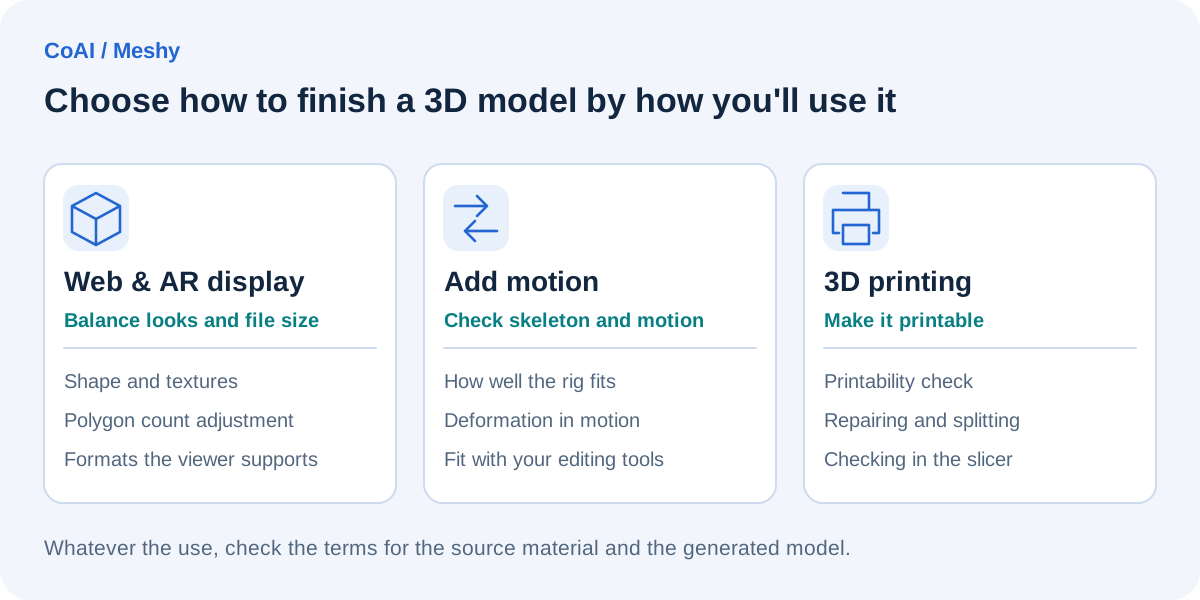
Cases where it is likely to fit:
- Game or video prototypes where you want to put together placeholder characters and props quickly
- 3D printing prototypes where you want to export STL or 3MF files and pass them to a slicer
- Cases where you want to try everything up to rigging and animation in one tool
- Cases where you want to build 3D generation into your own app or pipeline through the API (requires a paid plan)
Cases where it may not fit:
- Industrial design that requires dimensional accuracy, or uses that require CAD data
- Cases where you want to use output commercially on the free plan without attribution
- Cases where you would input highly confidential material, such as product images, without checking the conditions on training use
- Cases that require detailed facial expression rigs (the official website also says facial rigging requires manual work)
Example workflow (illustrative, untested)
The following example is meant to explain how the system works. The credit costs are reference values listed in the Help Center.
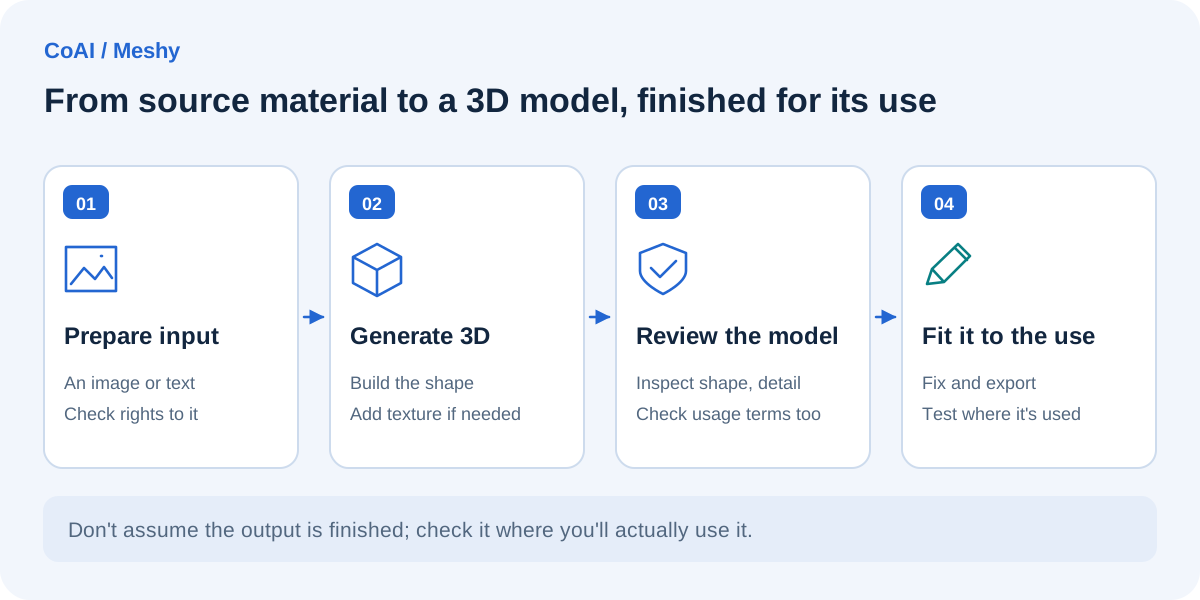
Consider using photos of your own products to create models for 3D previews on an e-commerce site, plus 3D-printed prototypes for a trade show.
- Prepare a product photo, select Meshy 6 in Image to 3D, and generate the model (20 credits)
- Check the shape and generate a 2K/4K texture (10 credits)
- Export as GLB for web display and USDZ for AR display on iOS
- For 3D printing, run the printability check, repair if needed (repair is 10 credits; the cost of the check itself is not listed in the web table), and export as STL or 3MF
In this flow, if you go as far as repair, the listed costs alone come to 40 credits per item (not including the cost of the printability check). The free plan only has 100 credits per month, and downloads are limited to Meshy 6 Lite models, so using Meshy 6 as in this example requires a paid plan. You also need to confirm in advance that your company holds the rights to the original photos.
How to choose between Meshy, Tripo AI, and others
Besides Meshy, there are other services that generate 3D models with AI, such as Tripo AI. Pricing and specifications differ by service and change often, so this article doesn't compare other companies' figures and instead lists criteria to consider when choosing.
- License for generated output: how rights are handled on the free plan, and whether paid plans let you keep output private and own it
- Whether the free plan allows downloads, and which model generations are available
- Credit costs, and how long additional credits remain valid
- The export formats you need (GLB, FBX, USDZ, STL, 3MF, etc.) and integration with the game engine or slicer you use
- Whether post-processing features such as rigging, Remesh, and 3D print repair are available
- Whether there is an API, what it costs, and how long output is retained
- Terms on the use of input data for training
The most reliable approach is to try several services within their free allowances using the same photo or description, then compare the criteria above on each company's latest official pages. You can also find an overview of Meshy on our Meshy page.
FAQ
Can I use Meshy for free?
Yes, there is a free plan that grants 100 credits each month. However, according to the pricing page, you can download only models generated with Meshy 6 Lite, up to 10 per month. Output is also provided under CC BY 4.0, so commercial use requires attribution to Meshy.
How much do paid plans start at?
Among the paid individual plans shown on the pricing page as of October 4, 2026 (UTC), Pro was the cheapest, with a regular monthly-billing price of $20 per month. New users were shown 50% off the first month with monthly billing ($10 for Pro) and 20% off the first year with yearly billing ($192 per year for Pro), but these are discounted prices and may change. Taxes are not included, so check the final amount at checkout (pricing page).
Can I sell the models I generate?
The FAQ on the pricing page says models created on a paid plan can be distributed and sold (pricing page). However, the Help Center assumes that you have not used material that infringes anyone else's copyright (ownership of generated models). Selling is also said to be possible on the free plan, but attribution (credit) to Meshy is required, for example in the description on the sales page.
Is the API billed separately from web app plans?
The API is available on paid plans and not on the free plan. According to the API documentation, the API uses prepaid credits, and you are directed to purchase API credits from your subscription settings before making requests. Per-task costs are also set in a table separate from the web app's (API pricing). The official pages we checked did not state whether the monthly credits included in a plan can be used through the API. When estimating web app costs, be careful not to apply the API's credit costs.
Date checked and sources
The information in this article was checked on the following official pages on October 4, 2026 (UTC). Pricing and specifications may change, so check the latest information before use.
- Meshy official website
- Meshy official website (Japanese)
- Meshy official pricing page
- Meshy Terms of Use
- Meshy AI Auto Rigging
- Meshy Help Center: Plan comparison
- Meshy Help Center: What's included on the free plan
- Meshy Help Center: Credit cost per task
- Meshy Help Center: Credit cost per API task
- Meshy Help Center: Model comparison (Meshy 7.1 / 6 / 6 Lite)
- Meshy Help Center: Ownership of generated models
- Meshy Help Center: Commercial use
- Meshy Help Center: Supported file formats
- Meshy Help Center: Feature list
- Meshy Help Center: How to use Text to 3D
- Meshy Help Center: Interface tour
- Meshy Help Center: Supported languages
- Meshy Help Center (Japanese)
- Meshy Docs: API overview
- Meshy Docs: API pricing
- Meshy Docs: Text to 3D API
- Meshy Docs: API Asset Retention
- Tripo AI official website